WhyKaigi
Set up real-time meeting translation for Zoom and Teams
WhyKaigi captures your computer’s output audio instead of installing a meeting-app plugin. Matching the output device is the key setup step.
Download for WindowsBefore you start
Requires Windows 10/11 (64-bit) and an internet connection. Check your organization’s transcription policy and participant consent. Verify important dates, amounts and decisions against the original speech.
- Download the official archive, extract it and run the installer.
- Sign in to your Why account and check your plan and required consent.
- Choose system audio for an online meeting, or microphone for your voice.
- Select the spoken and translated languages, then start.
Setup steps
- Find the selected speaker device in Zoom or Teams audio settings.
- Choose the matching WASAPI Loopback device in WhyKaigi. Match Bluetooth devices such as AirPods by name as well.
- Select the spoken language and translation direction. Play a short speech sample and check both the volume meter and original captions.
- After changing headphones or speakers, recheck both applications. System audio may also include sounds from other apps.
Troubleshooting
- No input volume: check that the meeting output and Loopback device match.
- Volume but no transcript: check your connection, sign-in, remaining meeting time and on-screen error. A moving meter does not prove transcription is working.
- Original captions but no translation: check the translation direction and error message. If it repeats, report the session time and error text.
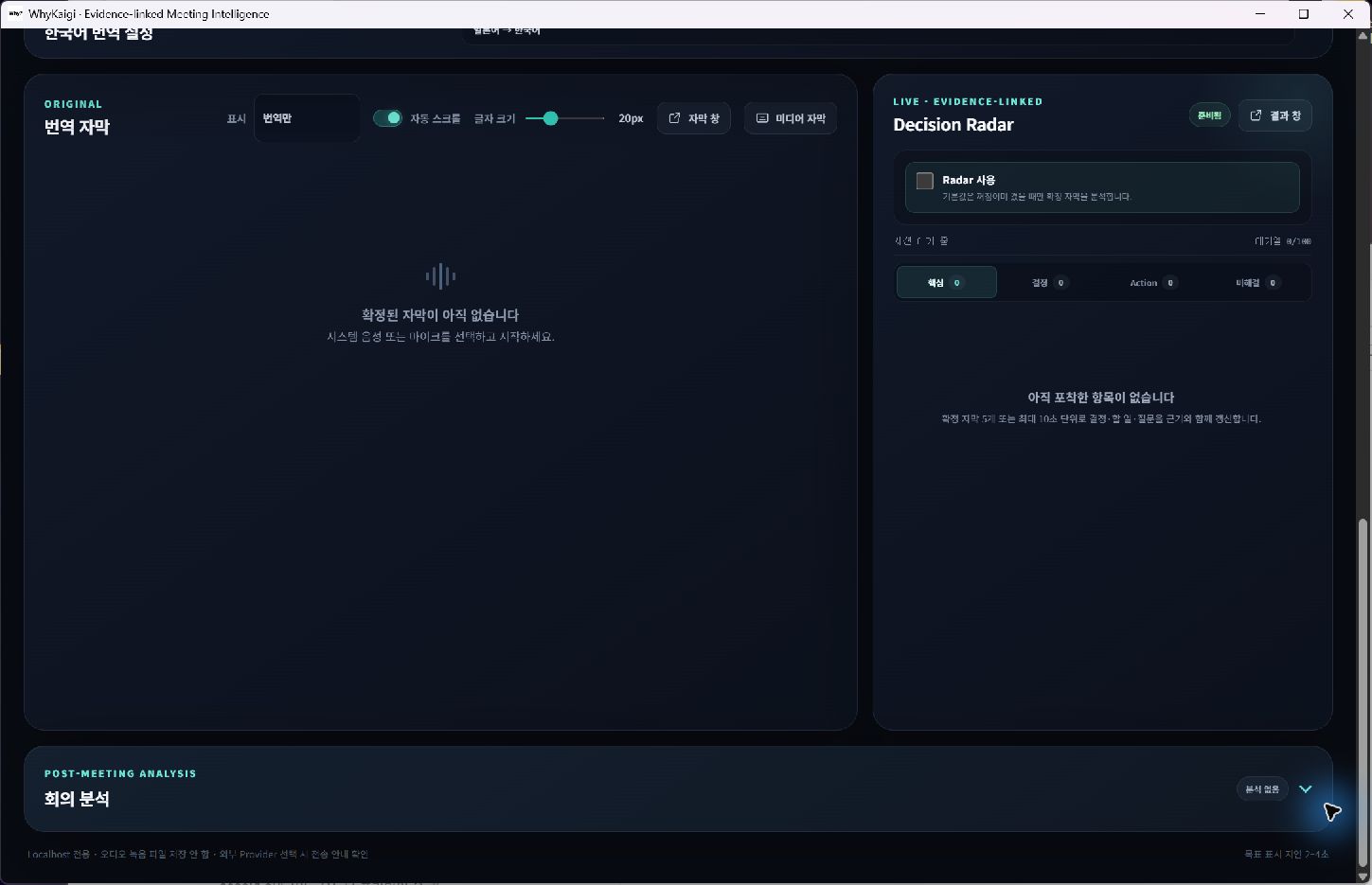
- Decision Radar and sharing depend on your plan. Enable Radar separately when needed; it is distinct from ordinary translation.